Recurring transactions in a budget app without bank sync
Updated October 15, 2026
Recurring transactions in a budget app are entries that repeat on a schedule, such as rent, salary, subscriptions, and loan payments. Without bank sync, they do a lot of the work a bank feed would: the predictable half of your spending appears on its own, and you only enter what varies. This guide explains how recurring transactions work in FireBudget, a Mac budgeting app with no bank sync, and how to set them up.
Why they matter more without bank sync
Look at a typical month of transactions and many of them are the same every time: the same payee, the same amount, the same date. With bank sync, those arrive automatically. Without it, someone has to enter them.
Recurring transactions solve that once. Set rent up as monthly and it appears in your register every month on the right date, in the right category. Your weekly entry time then goes on the transactions that actually need your attention.
Setting one up
In FireBudget, a recurring transaction starts as an ordinary transaction.
- Add the transaction (⌘N), or open an existing one, such as last month’s rent.
- In the date field, turn on Make this transaction recurring. The shortcut is R.
- Choose the interval: every N days, weeks, months, or years, from 1 to 999. “Every 2 weeks” covers a fortnightly paycheck, and “every 12 months” or “every 1 year” covers an annual subscription.
- FireBudget shows the next two dates so you can check the schedule before saving.
The schedule is anchored to the start date. A transaction set for the 31st lands on the last day of shorter months.
Transfers can be recurring too, so a monthly move to savings or a car loan payment can be scheduled the same way.
How they appear
When a recurring transaction is due, FireBudget creates it as a normal transaction in the register, uncleared, with the date it was due. It does this when you open the app, when you come back to it, and when the date changes while it is open. There is no background service: if FireBudget has been closed for a week, it catches up on the missed dates the next time you open it, each with its original date.
Above each account’s register, a collapsible Recurring list shows every schedule with its next date and interval. These upcoming entries are previews. They do not change any balance until they are created.
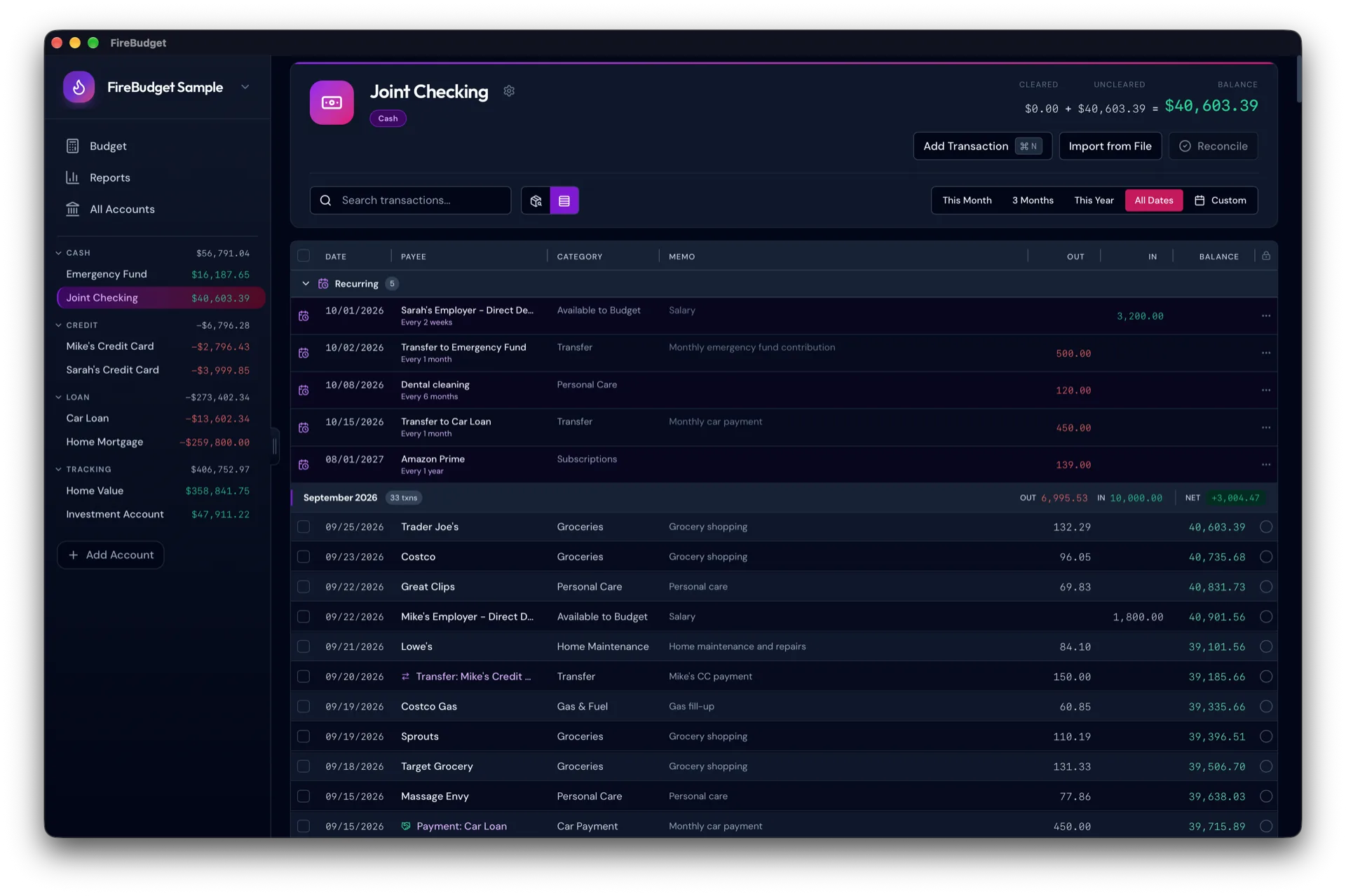
Editing, entering early, skipping, and stopping
From the Recurring list, each schedule has these actions:
- Edit schedule changes the amount, payee, category, or interval for future occurrences. Transactions already created stay as they are.
- Enter transaction creates the next occurrence now, for a bill you paid early.
- Stop recurring ends the schedule. No future transactions are created, and existing ones are unchanged.
To skip a single occurrence, delete the transaction that was created for it. To change one occurrence, such as a utility bill that varied this month, edit that transaction directly; the schedule is unaffected.
When the real transaction arrives in a CSV
If you import your bank’s CSV and it contains a payment that FireBudget already created from a schedule, it links the two instead of adding a duplicate. The match requires the same account, the same amount, and dates within three days, and only applies to uncleared transactions created by a schedule. See importing a bank CSV.
Good candidates and poor ones
Good candidates have a fixed amount or close to it:
- rent or mortgage payments
- salary
- subscriptions and memberships
- insurance premiums
- loan and savings transfers
Poor candidates vary every time, such as groceries, fuel, and dining out. For those, enter or import the actual amounts. Variable bills like electricity sit in between: you can schedule an estimate and correct each one when the bill arrives.
Recurring transactions and planning ahead
Because each schedule shows its next date, the Recurring list doubles as a list of what you need to budget for. Combined with the three-month budget view, you can see next month’s bills and assign money to them before they arrive. See budgeting months in advance.
What FireBudget does not do
FireBudget runs only on Macs with Apple Silicon (M1 or later). Recurring transactions are created when FireBudget is open, not in the background. It has no bank sync, no mobile app, and no sync between devices. Schedules repeat at a fixed interval; rules like “the last business day of the month” are not supported.