How to import a bank CSV into a budget app
Updated October 15, 2026
Importing a bank CSV into a budget app is the simplest way to get transactions in without bank sync. Most banks let you download recent activity as a CSV file, and most budget apps can read one. Most failed imports come down to the same three things: columns, dates, and duplicates. This guide explains each in a way that applies to any app, then shows the exact steps in FireBudget, the Mac budgeting app we make.
Step 0: Download the right file
On your bank’s website, look for Download, Export, or Statements on the account’s transaction page. Pick:
- CSV as the format. If you see a choice between CSV and “CSV for Excel”, plain CSV is usually safer.
- A date range that starts right after your last import. This is the single best way to avoid duplicates.
- One account per file. Budget apps import into one account at a time.
Understanding the columns
Open the file in Numbers or a text editor before importing. A bank CSV usually has a header row and one row per transaction. The columns you care about:
| Column | Typical header names | Notes |
|---|---|---|
| Date | Date, Transaction Date, Posted Date | Posted date is when it cleared. Transaction date is when you paid. Either works; be consistent. |
| Payee | Description, Payee, Merchant | Often in capitals with reference numbers, such as “SQ *BLUE BOTTLE 0423”. |
| Amount | Amount | Negative for money out, positive for money in. Some banks reverse this on credit cards. |
| Inflow and outflow | Credit and Debit, Deposit and Withdrawal | Some banks split money in and money out into two columns instead of one signed amount. |
| Memo | Memo, Reference, Note | Optional. |
Common problems
- Lines above the header. Many banks put the account name, number, or a date range in the first few lines. Most importers expect the header on the first line. Delete the extra lines in a text editor or Numbers and save as CSV.
- Ambiguous dates. Is 03/04/2026 March 4 or April 3? It depends on the bank’s country. Tell your budget app which order to use.
- Decimal commas. Banks in many countries write 1.234,56 instead of 1,234.56. FireBudget reads both.
- Negative amounts in parentheses. Some banks write (12.34) for money out. FireBudget reads that as a negative amount.
- Pending transactions. Some exports include pending rows that later change amount or disappear. Leave them out if you can.
Avoiding duplicates
Duplicates are the most common CSV mistake. Apps handle them differently, so know what yours does:
- Some apps compare each row with existing transactions and skip likely matches.
- Others, including FireBudget’s CSV importer, import every row in the file.
With FireBudget, the reliable approach is to import only new dates. Note the date of your last imported transaction, and download from the following day. If you do import a duplicate, select the extra rows in the account and delete them.
There is one useful exception. If you have set up a recurring transaction, such as rent, FireBudget has already created it when it fell due. When the CSV contains the same payment (same account and amount, within three days), FireBudget links the imported row to the existing one instead of adding a second copy. That only applies to uncleared transactions created by a recurring schedule.
If you want automatic duplicate checks, FireBudget’s AI agent import does match every row against existing transactions and flags anything uncertain.
Importing a CSV into FireBudget
Before the first import
Check your budget’s Date Input Format in Budget Settings. FireBudget uses it to read dates in CSV files, so set it to match your bank: MM/DD/YYYY, DD/MM/YYYY, or YYYY-MM-DD. ISO dates (2026-09-03) are always read correctly.
The steps
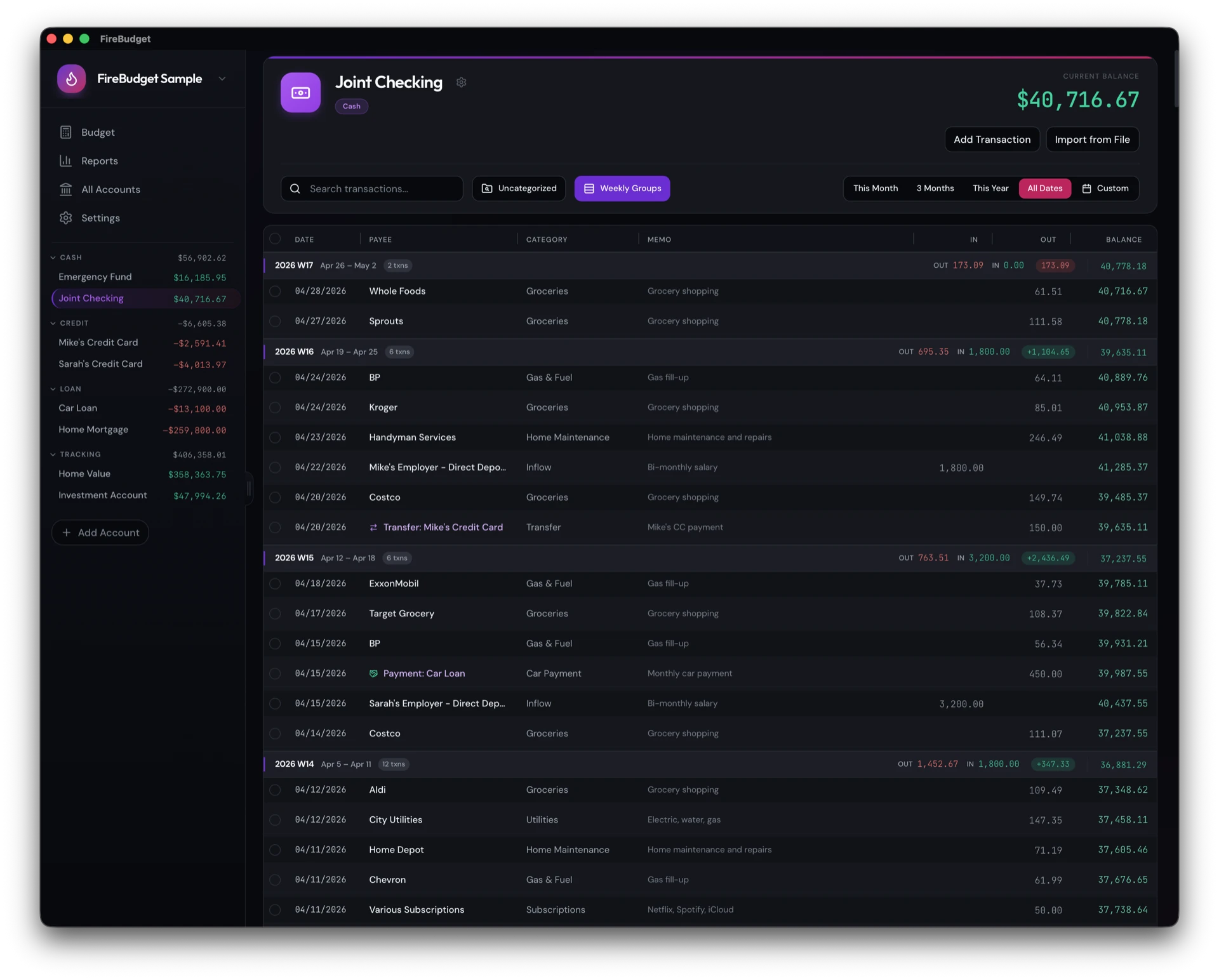
- Open the account’s transactions and click Import from File.
- Choose the CSV file.
- FireBudget detects the columns from the header names. It recognizes the common names in the table above, including separate inflow and outflow columns, so there is no mapping screen to fill in. If no amount column (or inflow and outflow columns) matches, it refuses the file; rename that header and try again. If no date or payee header matches, it assumes the first column is the date and the second is the payee, so check the preview.
- Review the dialog. It shows how many transactions will be imported, which account they go into (you can change it), how far back the dates go, a preview of the first rows, and any data quality corrections: for example, rows with a date it could not read.
- Click Import Transactions.
FireBudget takes a backup before every CSV import, so you can restore the previous state from the Backups list in Settings if something looks wrong.
What FireBudget does with messy rows
Rather than failing the whole file, FireBudget fixes problem rows and tells you:
- an unreadable date becomes today’s date,
- an empty payee becomes “Unknown”,
- an unreadable amount becomes 0,
and each corrected row gets a note in its memo, such as [Auto: date], so you can find and fix it. If the preview shows many corrections, the date format setting is usually the cause.
After the import
Imported transactions arrive uncategorized and uncleared.
- Use the Uncategorized filter to see what needs a category. Select several rows and use Categorize to set them at once. When you type a payee you have used before, FireBudget fills in its last category.
- If you use an AI agent, it can categorize the batch from your payee history, with a preview first. See categorizing transactions with Codex.
- At month end, mark the rows that match your statement as cleared and Reconcile.
What FireBudget does not do
FireBudget runs only on Macs with Apple Silicon (M1 or later). It does not connect to your bank, so CSV files come from your bank’s website. The CSV importer reads comma-separated files with the header on the first line, does not save column mappings, and does not check for duplicates other than recurring transactions. There is no mobile app and no sync between devices.